


Every October, we join a nationwide effort to spotlight the importance of cybersecurity. Whether you're working from home, in the office, or on the go, protecting your digital environment is essential to keeping our organization—and yourself—safe.
You need more than a password to protect your online accounts; enabling Multifactor Authentication (MFA) makes you significantly less likely to get hacked.
MFA provides us with extra security by confirming our identities when logging in to our accounts, like entering a code texted to a phone or one generated by an authenticator app. Even if an unauthorized user steals your password, they won’t be able to meet the second step requirement to access your accounts.
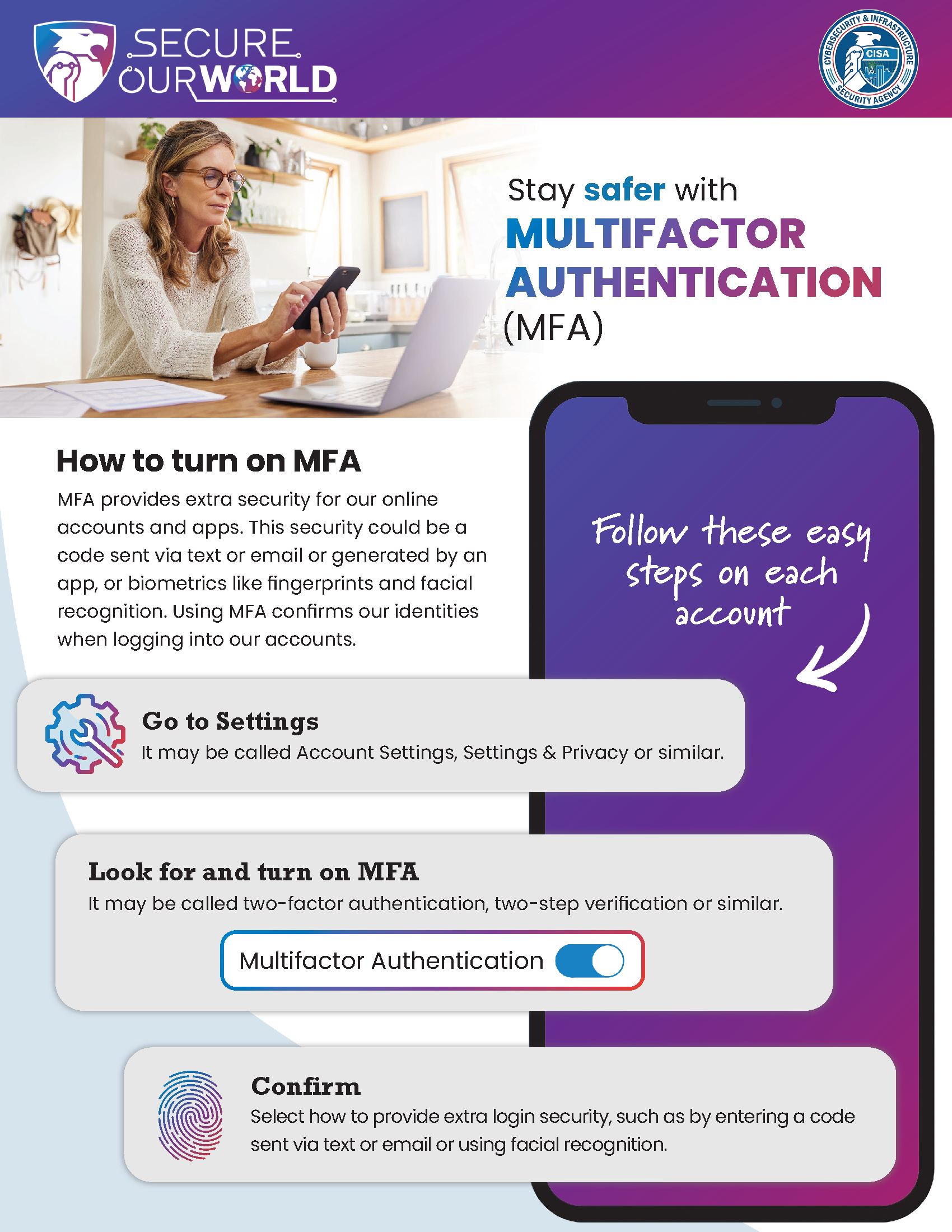
Turn on MFA for each account or app by following these three easy steps:
- Go to Settings
Look for settings under your account profile. It may be called Account Settings, Profile, Preferences, Privacy or similar. Then, select the security settings. This could be labeled Security, Password and Security or similar. - Look for and turn on MFA
It may be called two-factor authentication, two-step authentication or similar. - Confirm your choice
Select which MFA method to use from the options provided by each account or app. Examples are:- Receiving a numeric code by text or email
- Using an authenticator app: These phone apps generate a new code every 30 seconds. Use this code to complete logging in.
- Biometrics: This uses facial recognition or fingerprints to confirm our identities.
MFA will protect things like banking information, online purchases, social media, email, businesses and your identity so be sure to turn on MFA for every account or app that offers it.